Using Curator
Start in Recommendations after the first sync and model build. Use Find for related or external scenes, Curate to teach your preferences, and Manage for history, Prune, tasks, backups, and settings.
The screenshots show an isolated demo with fictional metadata and Blender film excerpts. Film credits and licenses.
Choose a lane
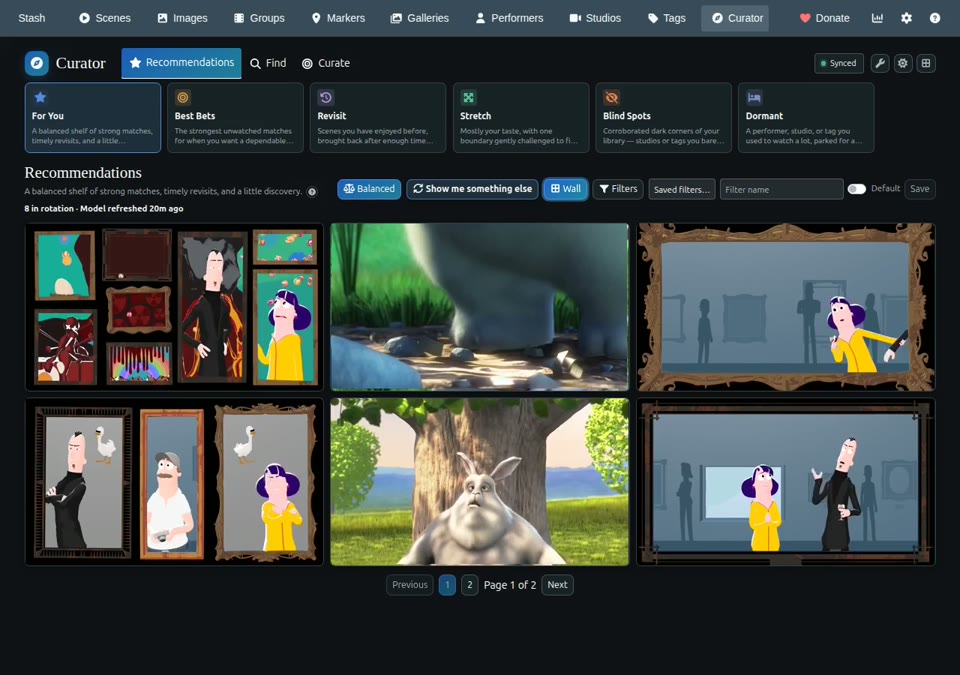
| Lane | Best used for |
|---|---|
| For You | A varied everyday mix of dependable matches, revisits, and a little discovery |
| Best Bets | Strong unseen matches supported by corroborating signals or reliable direct feedback |
| New Arrivals | Your best matches among the scenes added to your library most recently |
| Revisit | Scenes you previously enjoyed, shown again after enough time away |
| Stretch | Mostly familiar recommendations, with one confirmed tag or studio named as the challenge |
| Blind Spots | Studios or tags you’ve barely watched, corroborated by more than one signal |
| Dormant | A performer, studio, or tag you used to watch a lot, parked for a while |
Cards are arranged as a slate. Curator avoids adjacent performer repetition and softly varies studios and content, so the page is not merely the top 20 scores. Previous and Next continue through that same ranked sequence, preserving earlier variety decisions. Use the Balanced button beside a recommendation lane’s description to switch between varied and score-first order. This also updates Disable recommendation variety in Curator’s plugin settings. Paging uses the current model; new feedback, plays, filters, or a model update can change the results. Use the lane filters to narrow the selection. Choose Cards for feedback and explanations, Thumbnails for a compact grid of screenshots without text overlays, or Wall for muted playing previews. Thumbnails play a muted preview while hovered and restore the screenshot when the pointer leaves; touch devices show screenshots. The selected recommendation view is remembered in this browser. Curator follows available theme colors and surfaces. With Sticky enabled, external scene cards also use its studio/date row, performer names, and tag pills. Other themes keep Curator’s usual metadata layout. After updating, run Refresh Expand cache once to fetch studio logos for existing discovery results. Stash UI opens Curator in its embedded classic interface; Curator inherits that interface’s colors and fonts. Stash UI’s standalone lists and player do not run Stash’s component hooks, so Curator’s native card and detail-page additions appear in classic Stash only. Cards keep Appeal visible; selection evidence and lane rank are under Why this?. For endless scrolling, enable Virtual endless scrolling under Manage → Settings → Page settings, alongside Results per page (or Curator’s plugin settings). It is off by default. All three recommendation views then load the next ranked page about four screen heights before the bottom, one request at a time. Thumbnails also preload the next batch’s screenshots at low priority; videos wait for hover. Thumbnails and Wall render only nearby rows. Cards use the browser’s offscreen rendering support and stay mounted, preserving expanded panels and feedback state; loaded cards still occupy memory. Returning from another Stash page restores your position and nearby loaded batches in the same tab. Deep lists retain up to 12 nearby batches; earlier results load as you scroll upward. Storage size limits can retain fewer batches. Changing filters, moods, or choosing New picks starts a fresh list. Results per page controls the fetch size; Load more also lets you load explicitly or retry a failed request.
Use New picks for a fresh draw from the lane’s strongest recommendations. Higher-ranked scenes have better odds, while scenes you saw on screen recently have lower odds for a while. Scenes are never permanently removed by rotation: their odds recover over the configured rotation cooldown (7 days by default). A play or thumbs-up does not count as an ignored view. Returning to the page keeps the current draw; a new local day or a new model refreshes it. Refreshing the same lane twice in one tab also draws again; a single refresh keeps the current cards in place.
Play a lane
Choose a recommendation lane and your filters or mood, then click Play lane. Playback starts with the current picks. Use Next beside the player or the player’s next-track button to advance; Curator fetches another batch from the same lane when needed. Filters and mood stay fixed for that playlist, and scenes already queued do not repeat. Deleted scenes are skipped.
The playlist stays in the current browser tab, including after a refresh. Stop playlist returns the current scene to ordinary playback. When no more scenes qualify, Curator shows End of recommendations. A failed fetch keeps the current scene playing and offers Retry next. Moving on is manual.
Roulette
Choose a recommendation lane and filters or mood, then click Roulette to spin for a scene. Higher-ranked contenders have slightly better odds. Thumbnails lift from the lane, gather into a circle, and move into a close view of the wheel. Contenders outside the current view enter from the edges. Large 16:9 cards travel around a brass-trimmed wheel with a ticking pointer. The winning card gets a brief outline pulse before expanding into Stash’s native player as the wheel and table fade into its black background; Next, or reaching the end of the scene, folds it back into the wheel and spins again. Back folds the current video into the wheel, takes a short turn to the previous pick, and expands it at its saved playback position.
For a simpler experience, turn off Animate roulette in Manage → Settings → Playback, or open the gear menu inside Roulette. Both switches control the same preference, saved in this browser. Changes apply to the next pick. With animation off, Roulette selects immediately and uses a brief fade into the native player, without the wheel or its sound effects. Next, Back, continuous picks, and scene actions work in both modes. Animation is on by default; the browser’s reduced motion preference still takes precedence.
Gold light and inward-moving rings gather around the pointer during a spin, followed by a brief expanding outline when the winner lands. With sound enabled, a recorded card shuffle and a quiet air sweep follow the cards into the circle. The same layered, recorded sweep continues beneath the card clicks right up to the actual landing; a recorded mechanical clunk, double heartbeat, and quiet harmonic glow resolve the selection. A soft room tail fades beneath the reveal, alongside a whoosh. Mute, Exit, and moving to another pick stop the remaining tail. The controls use dark glass surfaces with a gold Next button, colored feedback confirmation, native rating controls, and a small droplet burst when an O is saved. Ratings, feedback, O, Open scene, Back, and Next share the top bar with the player options, leaving the picture and Stash’s seek bar clear. Pointer clicks return focus to playback, so Space and arrow keys keep using Stash’s native playback shortcuts. Rating inputs and open menus retain their editing focus; keyboard navigation to toolbar buttons retains normal button actions.
The session keeps its original lane settings and fetches more qualifying scenes as needed. Once every eligible scene has been selected, it automatically fetches a fresh round and continues. Scenes do not repeat within a round; when alternatives exist, the next round avoids immediately repeating the last pick. Spent tiles stay visible as context; replacements enter after the wheel starts moving. There is no fixed session length or total counter. If no scenes qualify, use Retry later.
Mute silences both the scene and Roulette effects immediately and is remembered locally. Fullscreen includes Roulette’s controls; Exit or Escape closes the session and returns focus to its launch button. While watching, Useful and Not for me save Curator feedback. The normal Stash rating control and O counter update the selected scene directly. Open scene ↗ pauses playback and opens the full scene page in another tab, keeping your Roulette session and position. Playback uses Stash’s native activity tracking: watch duration and resume position are saved when tracking is enabled, and play count follows Stash’s configured minimum watched percentage. Roulette’s controls and title fade after a short period of inactivity while video is playing. Move the pointer, touch the player, or use the keyboard to reveal them. They stay visible while paused, loading, or showing an error, and remain usable when focused with the keyboard. Reduced-motion preferences replace spinning and reshaping with a direct reveal. An unavailable scene or failed request offers retry and navigation controls.
Inspect and teach
Open Why this? for a plain-language reason and score tree. It separates durable Appeal from Current Fit, shows confidence, and names positive or negative evidence. The score tree shows the evidence behind the summary.
Use thumbs up or down for direct feedback. The detail menu also supports Not now, Never show, Mark for pruning, and Metadata is wrong. Check the card’s confirmation or error after submitting feedback. Accepted feedback contributes to a batched model update, so one action may not change the next recommendation immediately. Use Manage → Feedback history to undo or replace a mistaken answer. Not now temporarily hides a scene without recording dislike; Metadata is wrong excludes its current metadata from training.
To correct a tag belief directly, use Curate → Tag sentiment.
The Rate tags action on recommendation and Library Similar cards lets you rate the scene’s tags with the sentiment controls, including Never and Clear. Card rating actions open a wider slider panel, with one aligned label header and one compact row per tag. Each row shows the current answer and Clear. The panel shows the full list and scrolls with the page, with Collapse at the bottom. On phones, shorter sliders show just the two end labels; the current answer stays visible on the right. Long tag names are shortened to keep each rating on one row. Never (block) excludes matching content; it is stronger than dislike.
After a thumbs up or thumbs down, Curator offers an optional, dismissible follow-up: What made it work? or What put you off? It shows the same chips as Why these?: the scene’s performers, its most telling tags in that direction, the studio, Just this scene, and Something not tagged…. Tap any that apply and press Done; they are saved as a scene reason. After a thumbs down, Metadata is wrong tells Curator not to learn from the scene’s current metadata instead. Skip or × closes it; the thumb itself is already saved either way.
Affinity on detail pages
Scene and performer pages show one collapsed Curator bar below the ratings and O-count controls. The bar keeps affinity or Appeal, confidence, and Similar visible; performers also have Performer Hunt. Click the triangle or use the keyboard to expand the details. The bar stays in place when expanded.
Under Manage → Settings → Page settings → Detail page controls, choose Large (default) for the full-width bar, Small for compact icons and a score inside the existing toolbar, or Off to hide these page controls. In Small mode, expanding moves the details below the toolbar; collapsing returns the icons to it.
Performer details separate scene evidence, favorite/rating, and similar-performer inference. They name the similar performers used by the published model and link to up to eight scenes with the strongest learning evidence. Those scenes are model inputs, not necessarily explicit performer likes or dislikes.
Scene details separate long-term Appeal from Current Fit, show direct history, and name contributing content features, performers, studios, and fit adjustments. Expand Why this score? for the explanation or Scenes behind this estimate for related-scene evidence when available. Individual input signals do not add directly to Appeal because the model applies family weights and score bounds. Missing evidence is distinct from a learned neutral preference; confidence describes evidence strength, not the probability of enjoyment.
Curate
Curate brings together Tag questions, Tag sentiment, and Impact. Pair picks have been retired; answers you gave earlier stay in Manage → Feedback history but no longer change recommendations.
Tag questions
Tag questions asks about the few tags where one answer would change your recommendations most: tags common in what For You would show you, about which Curator has little evidence or a confident guess worth checking. A guess is asked as “Curator thinks you like this. Right?”: Yes picks the matching slight step, or pick another point on the scale. Each question shows the tag’s Stash description, a short reason, and up to six muted preview clips. Clips from scene markers carrying the tag come first, labelled Marker, because they show the moment itself; the rest are previews of scenes from your recommendations. Pick a point on the sentiment scale, check it, and press Next, or press Skip; a skipped tag stays hidden in this browser for 30 days. Answers are ordinary Tag sentiment answers, so you can review or clear them there (See all tags). The questions keep coming until none are left that would change much: the queue tops itself up in the background, and every five answers Curator updates recommendations and reorders the remaining questions, so a tag your earlier answers already settled is not asked next. Every answer is saved on Next, so you can stop at any point. Apply my answers now runs a model update straight away.
Review my answers goes through your own answers that most disagree with what your viewing alone suggests, ranked by the size of the gap and how confident the viewing evidence is. Answers with little viewing evidence are not compared. Each card shows your answer, what viewing points to, and when you answered. Keep marks it checked in this browser until you change it (or for 180 days), another point on the scale plus Save change replaces it, and Clear answer plus Save change removes it so viewing decides that tag again.
Why these?
Why these? asks about one scene at a time. Hits shows the scenes you have played that Curator rates highest and asks what makes them work for you; Misses shows the scenes Curator rates lowest and asks what puts you off. Each card has a muted preview (open it to see the scene) and chips to tap: up to three performers, the four tags on the scene that say most about it in that direction, the studio, and Just this scene. Something not tagged… finds a tag the scene shows but is not tagged with. If Curator has it backwards, I don’t actually like it (Hits) or Actually, I’d watch this (Misses) turns the question around. Press Next once something is picked, or Skip; a skipped scene stays hidden in this browser for 30 days.
Each tapped performer, tag, or studio is evidence for it in the next model update, a quarter as strong as a direct tag answer, so a reason that comes up across several scenes adds up. A missing tag counts as that tag. A turned-around question is a mild correction for the scene itself, about a slight like or dislike rather than a thumb, and Curator learns from it that much (without adding the scene to Prune review). Just this scene also counts for the scene itself, in the answer’s direction, but Curator learns nothing about its tags, performers, or studio from it. Answered scenes are not asked again.
Tag sentiment
Moods hide selected tags and their descendants from every recommendation lane without changing your learned taste. Create, rename, delete, and edit moods under Manage → Settings → Recommendations → Moods. Search and select excluded tags as in Performer Hunt; changes save automatically. Choose one mood or Off in the recommendation dropdown; Manage moods… opens these settings. The active mood defaults to Off and is remembered in a cookie in the current browser. Mood definitions are shared, and edits apply on each browser’s next recommendation refresh. Deleting the active mood returns the browser to Off. Existing Mood mode exclusions become a mood called Together, preserving the browser’s previous On/Off choice. Empty lanes keep the exclusions enforced. This filter applies to recommendations; Similar, discovery, and ordinary Stash browsing keep their existing behavior.
Review tag beliefs and answer with a fixed sentiment from strong dislike to strong like. The scale has seven steps: strong dislike, dislike, slight dislike, neutral, slight like, like, and strong like. On a phone the labels above the tag questions slider are tilted to fit. A direct answer is strong evidence rather than a hard exclusion. The separate Never setting blocks matching content. Neutral is an explicit near-zero preference, while Clear answer removes your direct answer or block and returns the tag to behavior-derived inference. A tag you have not answered starts from its nearest answered parent tag’s answer (the mean, if several), at half the weight of a direct answer; answering the tag itself replaces that. Never blocks are not passed down this way. Answers are queued locally during transient failures. Direct answers affect tag fit but do not count as separate behavioral corroboration. Search includes classified local tags, including performer attributes and tags that currently appear on zero scenes, so preferences can be declared before that content enters the library.
Impact
Impact compares model builds so you can see how your feedback changed preferences and recommendations. Use Manage for tasks, backups, feedback history, diagnostics, and settings.
Find
Find opens on Expand. Connect StashDB and refresh its candidate cache to see external leads; Similar also works with scenes already in your library.
Choose Cards or Thumbnails in Expand, Similar, Performer Hunt, or Shortlist. Find remembers this choice separately from Recommendations. Thumbnails show only the image; switch to Cards for match details and actions. Library scene thumbnails play previews on hover; external results and performers show still images.
The Virtual endless scrolling switch in Page settings applies to Find too. Both Cards and Thumbnails load the next batch early as you approach the bottom. They restore your position and nearby batches when you return from another Stash page. Loaded cards retain their expanded controls while the browser skips offscreen rendering. Turn the switch off to use pagination. Library Similar’s playing Wall keeps pagination to bound simultaneous videos.
Expand
Find and recommendation cards keep evidence and score breakdowns under Why this?, with the remaining actions alongside it. Date, primary score, and tag/performer counts share a row where space allows, above the description. Local tag ratings sit beside the thumbs. External thumbnails open StashDB, so cards omit separate Open and Copy buttons. Expand has pagination above and below its results; both controls preserve the current filters and sort order. On mobile, pagination uses compact first («), previous (‹), next (›), and last (») page buttons around the current page, all on one line.
Expand ranks a refreshed pool of StashDB scene candidates and related performers against your local model. Refresh its cache from Curator or with the Refresh Expand cache task, then browse candidates, save filters, or shortlist leads. The refresh retains eligible leads found through Similar and Performer Hunt, updates their scores after model changes, and drops scenes outside the recent-release horizon.
Expand reuses the last query’s ordering across pages. Changes to candidates, filters, blocks, tag equivalents, or local library matches invalidate it; shortlist changes appear immediately. Unchanged pages load only their own candidate payloads, using a database revision marker instead of scanning the entire pool.
Scene ownership matches use a local index of StashDB IDs and exact pHashes, including scenes without StashDB links. Sync maintains the index; scene hooks queue targeted updates that Expand applies before filtering. Metadata edits that leave IDs and hashes unchanged preserve cached ordering. Existing installs populate the index as part of background Expand refresh and force-rebuild, or during a full sync. Refresh also applies queued scene updates, so opening Expand after it completes does not need to initialize the index. If none of these tasks has run yet, opening Expand starts a background initialization task as a fallback. Expand shows “Checking your library…” and automatically displays candidates when the task finishes; progress and any failures appear in Manage → Tasks. The “Prepare local scene matches” task retries interrupted initialization. Profiling separates fetching, indexing, pending updates, and loading the local matches. After bulk fingerprint generation or changes made outside Stash, run a full sync to reconcile changes missed by hooks.
Saved filters and their defaults are stored in Curator’s database and are shared across browsers, including private browsing sessions. Plugin updates retain them. Existing browser-only filters are imported when you open Curator in that browser; if a name already exists in the database, the database version takes precedence. Mark a filter Default to apply it automatically when reopening its view. Choose a saved filter from the selector, or expand Save current filters to name and save your current settings. The selector shows the matching saved name; changing its settings shows Current filters (unsaved) until you save them.
Results come from a cached selection, not a search of the entire catalog. By default, each refresh fetches up to 1,000 candidates within a 90-day release window; you can adjust both in settings.
External results are metadata leads, not proof that a scene is available locally. Filters and ordering apply before paging. Include and exclude tag pickers search both local tags and the cached StashDB tag catalog in Expand, Performer Hunt, and StashDB Similar. StashDB-only tags do not need to exist in your library; names and aliases filter remote results. Refresh Expand’s cache to update that catalog. If Whisparr is configured, Send to Whisparr appears on external scene cards; it sends only the scene you select. Use Rate tags to rate tags that map exactly to local tags. Saved candidates appear in Expand → Shortlist.
To stop seeing a StashDB scene, use the thumbs down (Not interested) or the clock (Not now, 30 days) on its card in Expand, StashDB Similar, or Performer Hunt. The card stays in place with Undo until the next load, then the scene is left out of all three views. Shortlisted scenes stay in the Shortlist. To see them, turn off Hide dismissed scenes in the view’s Filters: hidden scenes return with a Hidden badge and Show again. A Not now scene returns on its own after 30 days. These scenes are not in your library, so a dismissal does not train the model as scene feedback. After Not interested, Curator may offer an optional What put you off? card, anchored below the dismissed card, with the scene’s performers, its studio if it is in your library, and its matching local content tags. Each chip for a performer, studio, or tag in your library counts against it the same way a Why these? reason does; Tag sentiment answers are not changed. A performer who is only on StashDB is marked as one you’re not into: Expand, StashDB Similar, and Performer Hunt rank every scene with her lower, including scenes found by later refreshes, and the card says so. If she later appears in your library under the same StashDB id, the next model update counts the dislike against her local profile instead. Manage → Feedback history lists these performers with Undo. Manage → Feedback history also lists hidden StashDB scenes with Undo. Showing a scene again keeps any reasons you gave.
Similar
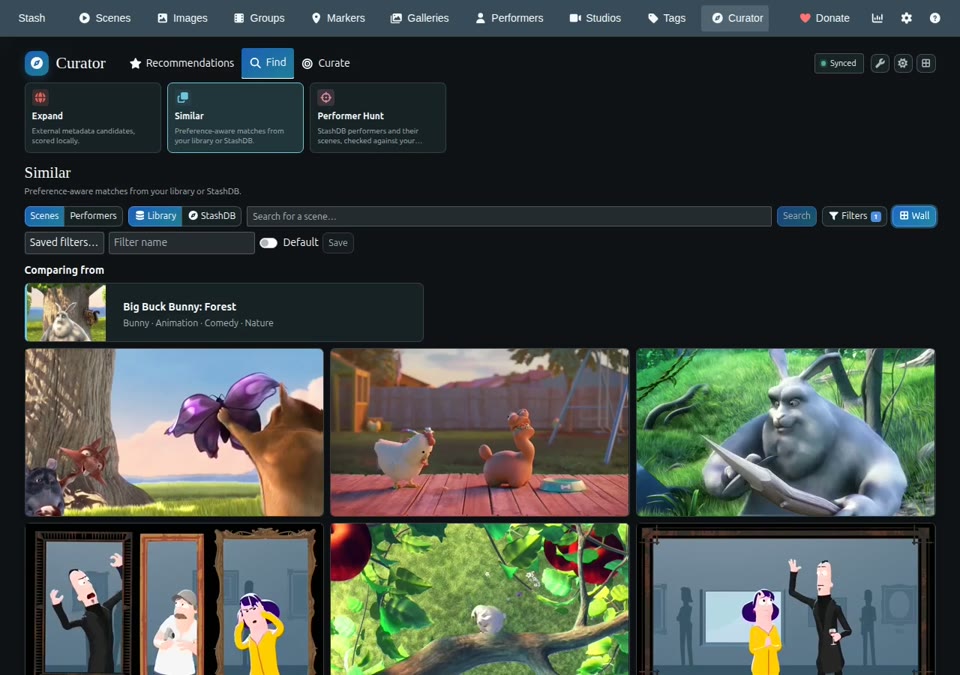
Open Similar from Curator or the Similar action on a Stash scene or performer. Library results use content overlap and preference-aware performer profiles. Switch to StashDB only when you want external candidates; local and remote results remain separate and the reference entity stays visible.
| Source | What you get | Requirement |
|---|---|---|
| Library | Related scenes or performers already in Stash | A synced Curator model |
| StashDB | External metadata candidates, ranked with local preferences | A configured StashDB stash-box |
Local matches use the configured page size. StashDB Similar keeps up to 100 matches from one remote search and pages that stable result locally.
Performer Hunt
Performer Hunt searches both local performers with a StashDB identity and performers on StashDB. Select one to fetch their scene catalog directly from StashDB. It compares exact StashDB scene links and separates All, In library, and Not linked locally results; unlinked does not mean definitively missing because local scenes without StashDB identities cannot be matched. Queries follow StashDB pagination up to 1,000 scenes and disclose when that cap truncates the result. Include and exclude tag filters apply to the fetched result.
Performer pages keep Similar and Performer Hunt in the collapsed Curator affinity bar, alongside the score and confidence.
The film action on a StashDB Similar performer card opens the same hunt for that external performer directly, so its full catalog is fetched from StashDB instead of being limited to the bounded Expand candidate cache.
On Stash’s Performers card grid, a compact Curator pill sits at the bottom right of each portrait, above Ascension’s badge when present. It shows affinity and the Similar/Hunt actions. The grid shares one affinity request while cards load. Choose Curator affinity in Stash’s Performers sort menu to order the full filtered result by your current affinity estimate. The direction arrow switches between highest and lowest affinity; performers without an estimate remain last. Filters, pagination, and the existing card and list views still apply. Matching performer IDs are cached for up to 30 seconds, so recent metadata edits may take that long to change the result set. In the same page’s filter dialog, choose Curator affinity to compare the score with a decimal value (for example, Greater than 0.15). It works with native sorts as well as Curator affinity sorting, and filters before pagination. Is null selects performers without an estimate; Is not null selects performers with an estimate, including zero. Other comparisons exclude unestimated performers.
Stash’s native scene card grids show a compact Curator pill over the thumbnail, with Appeal, model confidence, a divider, and a Similar shortcut. It uses the performer pill’s design and sits at the bottom left, leaving native resolution and duration visible at the bottom right. The scene detail toolbar uses the same pill, including the Similar shortcut. Curator Appeal in a scene list’s sort menu orders the full filtered result by long-term scene Appeal; scenes without a published estimate stay last in either direction. The same filter accepts decimal comparisons and Is null/Is not null for scenes without/with an estimate, including zero. Native search, other filters, pagination, counts, duration, and file-size totals apply to the matching scenes. Scores are looked up in batches, and sorting and filtering run in the backend. This uses the existing published model’s Appeal on the -1 to +1 scale; Current Fit and lane ranking remain separate. Newly added scenes may lack an estimate until the next sync and model build.
The Hide exact PHash matches filter is enabled by default. It also applies to Expand and StashDB Similar scenes. Disable it to inspect candidates marked Likely local · exact PHash; a matching PHash is strong evidence, not guaranteed identity.
Prune
Open Manage → Prune to review explicit dislikes, suspected poor fits, and candidates marked for pruning. Broad & unwatched surfaces scenes from studios that occupy a large part of your library but have barely been played. Use the aggressiveness slider to include less certain model suspects. Review each item before applying the configured tag. Applying or removing the tag changes Stash metadata only; it does not delete a file or rewrite your feedback. Curator never deletes media, and the tag can be removed from the same view or in Stash.
Routine maintenance
- Curator’s background worker can apply pending model updates and recent-play syncs; optionally schedule Expand refresh, sync/build, and backups in plugin settings.
- Automatic and scheduled tasks wait while a Curator page is visible, then resume 90 seconds after its last heartbeat. This applies across tabs and users. Tasks you start explicitly still run; a task already running finishes normally.
- On Linux containers, the worker uses half the container memory limit as a soft
Go memory budget, leaving room for Stash and build subprocesses. An explicit
GOMEMLIMITtakes precedence. The worker also collects garbage more often than Go’s default (GOGC=50) to lower build peak memory; an explicitGOGCtakes precedence. - Sync after meaningful library or metadata changes; a full sync reconciles deletions and tag merges that targeted entity hooks do not cover.
- Run the first sync/build before expecting recommendation lanes to contain results.
- Plays recorded by Stash are imported automatically after Curator playback so cooldown and recovery stay current; the Sync recent plays task can also be run manually.
- Changes to scenes, performers, studios, and tags in Stash are queued through entity hooks and imported before the next model update. They do not appear immediately.
- Back up before plugin updates and before uninstalling.
- Treat Blind Spots and external results as exploration, not guaranteed matches.
- If Curator feels stale, check task status and run the normal sync before a full one.
- Enable profiling only while measuring a reproducible slow operation; retained
traces stay local until cleared.
worker-*traces measure actual background execution; task traces without that prefix measure the request to enqueue work.